Dataset Submissions
Data Submission Overview
This data submission and review workflow module provides SACS Web System users with an end-to-end financial data submission process. Some transition and state changes for data submissions are included with some system-automated or approval-based changes.
Workflow functionality is role-based. Authorized users may view and manage relevant workflow items. Multiple users may work with the same data file at the same time. They may not, however, edit the same form simultaneously. As part of the workflow process, users and reviewers may comment and request corrections to a data submission.
Workflow functionality includes charter school reporting. A charter school may report using either the SACS format or Charter Alternative format. Reviewing agencies of charter schools may monitor submission progress.
Dataset Edit and Locking
When a user is a member of an entity and has the role of Edit Dataset or Edit Draft Dataset, the SACS Web system allows modification of a dataset submission. Additionally, the user must lock the form or entire submission prior to editing and if the submission is locked by another user, a user with the Administration or User Manager role can remove the lock.
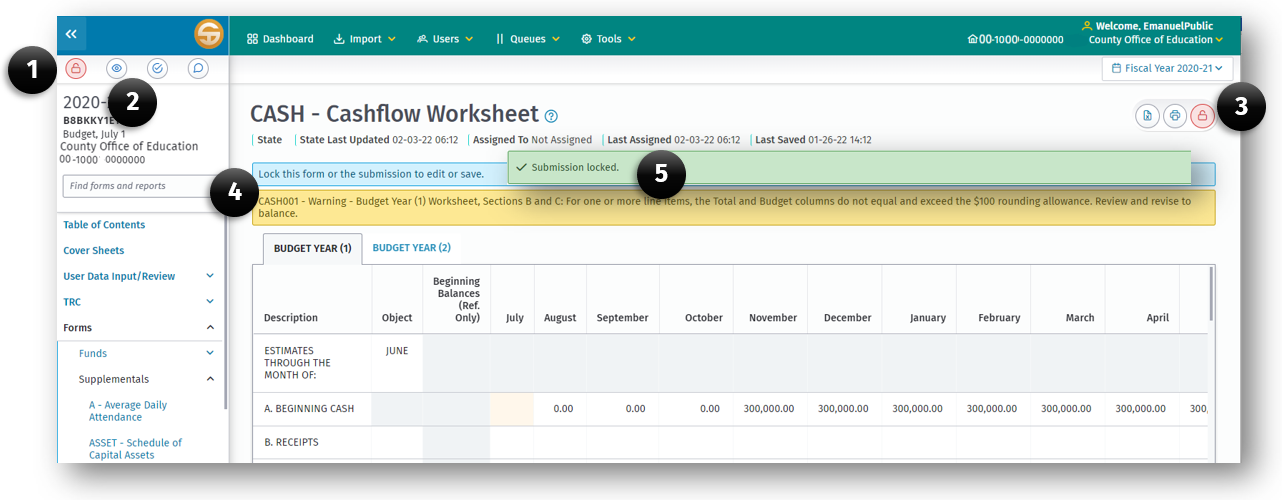
Elements of the Submission Lock Feature
- Lock Submission button
- View Current Locks button
- Lock Current Form button
- Notification of who and what form a lock is applied
- Notification of submission locked
To lock a submission or individual form
a. Open the submission by clicking the submission link on the Dashboard Submission list.
b. On the User Data Input Review screen click either the Lock Submission button (1) or theLock Current Form button (3).
c. A notification (5) will be displayed if the lock was successful.
To unlock a submission or form
a. Go to the User Data Input Review screen or the form which is locked and press the appropriate lock button (1) or (3) to unlock the submission form.
b. Click the View Current Locks button (2)
c. In the notification (4) click the remove lock button for each form or submission.
Note: A user can unlock their own submission locks only. But a user with the User Management and/or Administration role can unlock another user’s locked submission.
Locking criteria based on form dependencies
*Locking a form will also prevent other forms from being locked if part of a dependency chain
| Left Navigation Pane | Locking Requirements |
|---|---|
| Table of Contents | No Locking Requirements |
| User Data Input/Review | SUBMISSION wide locking required |
| TRC | SUBMISSION wide locking required |
| Forms | FORM* or SUBMISSION wide locking required |
| CEFB | SUBMISSION wide locking required |
| IFC Statuses | No Locking Requirements |
| Reports | Form* or Submission wide locking required |
| Version History | No Locking Requirements |
| Import | SUBMISSION wide locking required |
| Export | No Locking Requirements |
| LEA Custom Information | No Locking Requirements |
Dataset Workflow
Workflow Criteria
Learn more about Submission Workflows
Opening a Submission
- From the Dashboard page, click the submission (1) link (CDS number in the CDS Number column).
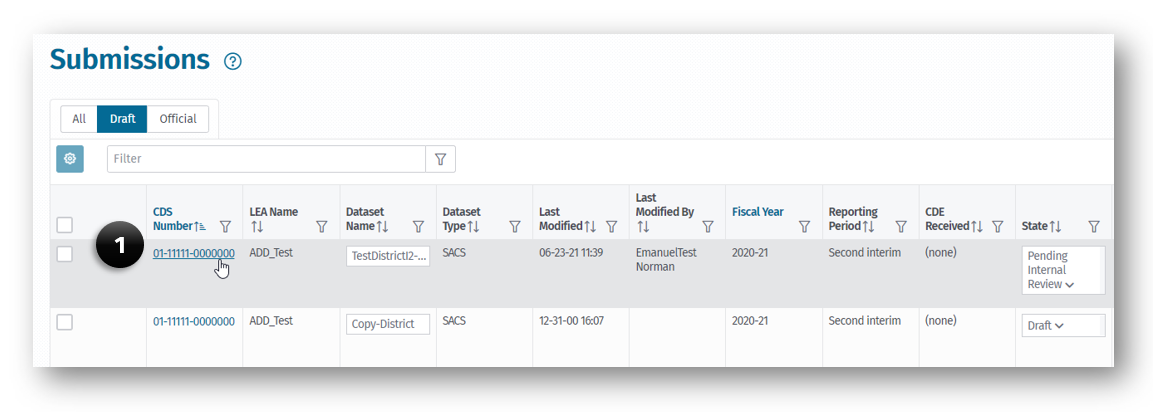
The submission will open to the User Data / Input Review Screen.
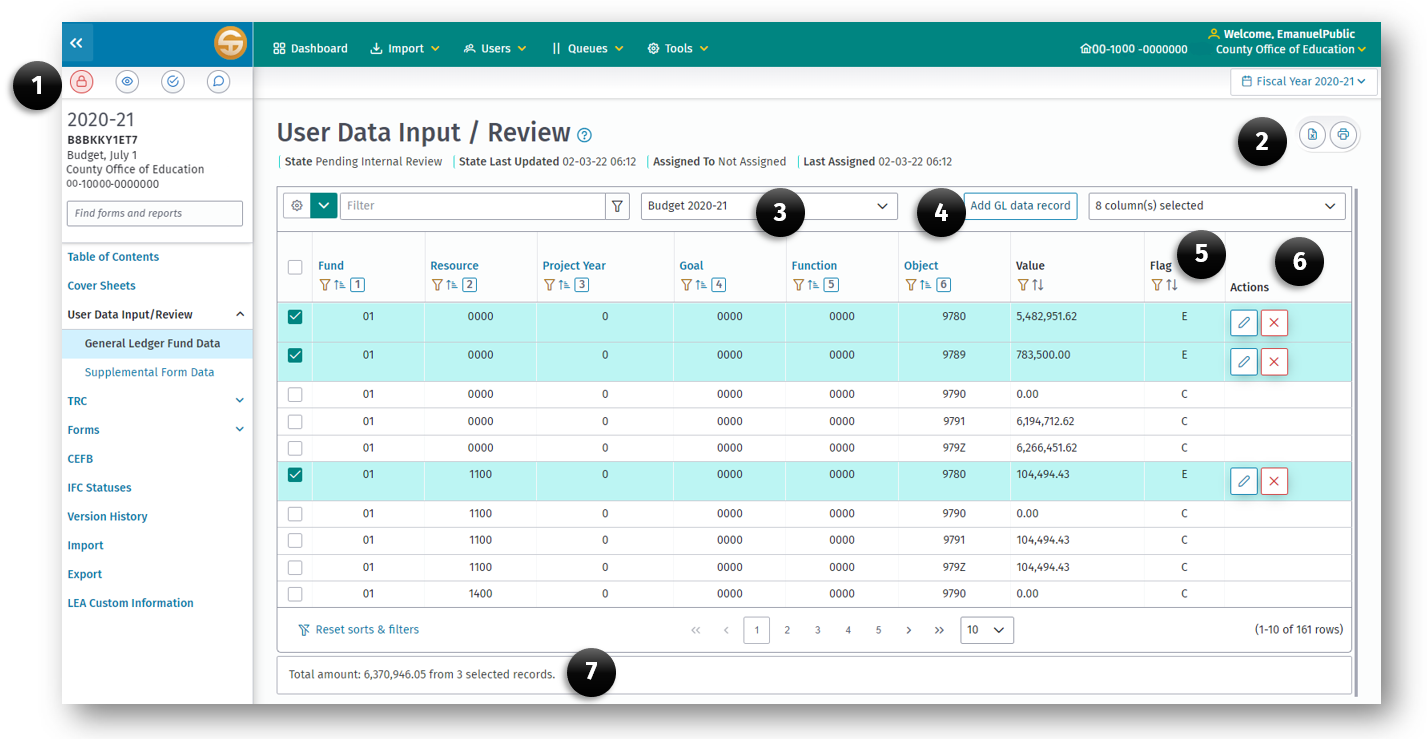
Key Elements of the User Data / Input Review Screen includes:
-
Submission Control buttons
- Lock Submission
- Display Current Locks
- Verify Official Status
- View and Add Comments
-
Print and Export buttons
-
Data type selector
-
Add GL data record button
-
Record Flag Indicator Column
-
Record Action buttons
- Edit Record button
- Delete Record button
-
Cumulative Total display